> ## Documentation Index
> Fetch the complete documentation index at: https://trigger-v3-fix-additional-files.mintlify.site/llms.txt
> Use this file to discover all available pages before exploring further.
# Using the CLI
> How to use the CLI
## Introduction
If you're setting up your project for the first time, we recommend using the CLI by following the [Quickstart guide](/documentation/quickstart).
## init Command
The `init` command incorporates Trigger.dev into your project. It performs the following functions:
* Adds Trigger.dev to the project.
* Creates a new route.
* Generates an example file.
During execution, this command requires some configuration parameters. Detailed information on these parameters can be found in the next section.
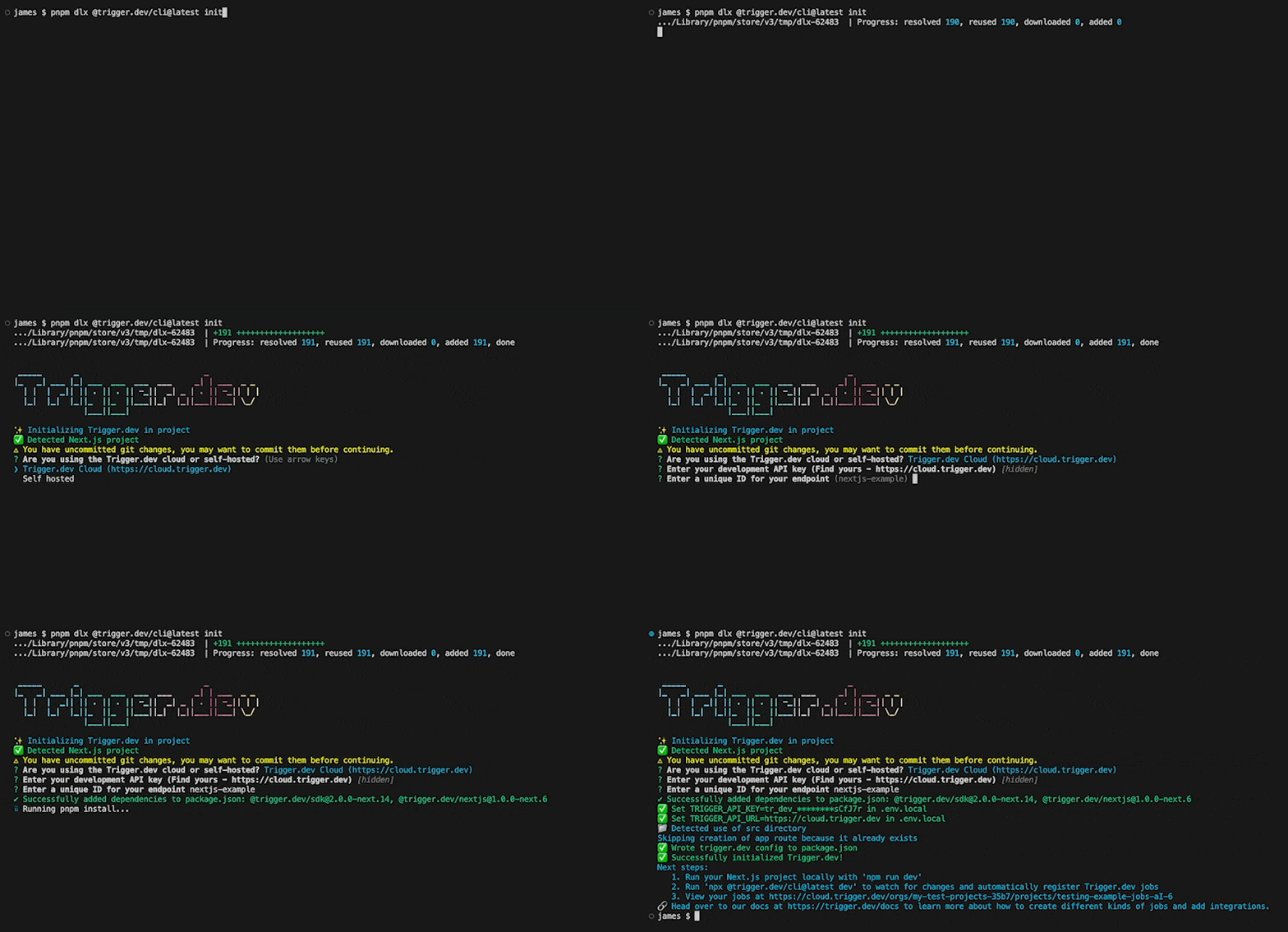
Run this `init` command in a terminal window to setup your project with Trigger.dev
```bash npm
npx @trigger.dev/cli@latest init
```
```bash pnpm
pnpm dlx @trigger.dev/cli@latest init
```
```bash yarn
yarn dlx @trigger.dev/cli@latest init
```
### CLI steps explained
Trigger.dev Cloud is a fully hosted service that provides the easiest and quickest way to use Trigger.dev.
Instead of using the Trigger.dev Cloud service which we host for you, you
can host the Trigger.dev platform yourself. We provide an official
Trigger.dev Docker image you can use to easily self-host on your preferred
platform. More information on self-hosting can be found in the
self-hosting section of the docs
[here](/documentation/guides/self-hosting).
When following the [self-hosting guide](/documentation/guides/self-hosting) you will deploy your Docker image to a platform of your choice. After completing this step, enter the URL of your self-hosted instance in this CLI step.
To locate your development API key, login to the [Trigger.dev
dashboard](https://cloud.trigger.dev) and select the Project you want to connect to. Then click on
the Environments & API Keys tab in the left menu. You can copy your development API Key from the
field at the top of this page. (Your development key will start with `tr_dev_`).
Enter a custom ID or use the default by hitting enter. You can learn more about endpoints
[here](/documentation/concepts/environments-endpoints#endpoints).
## dev Command
Once you're running your project locally, you can then execute the `dev` CLI command to run Trigger.dev locally. You should run this command every time you want to use Trigger.dev locally.
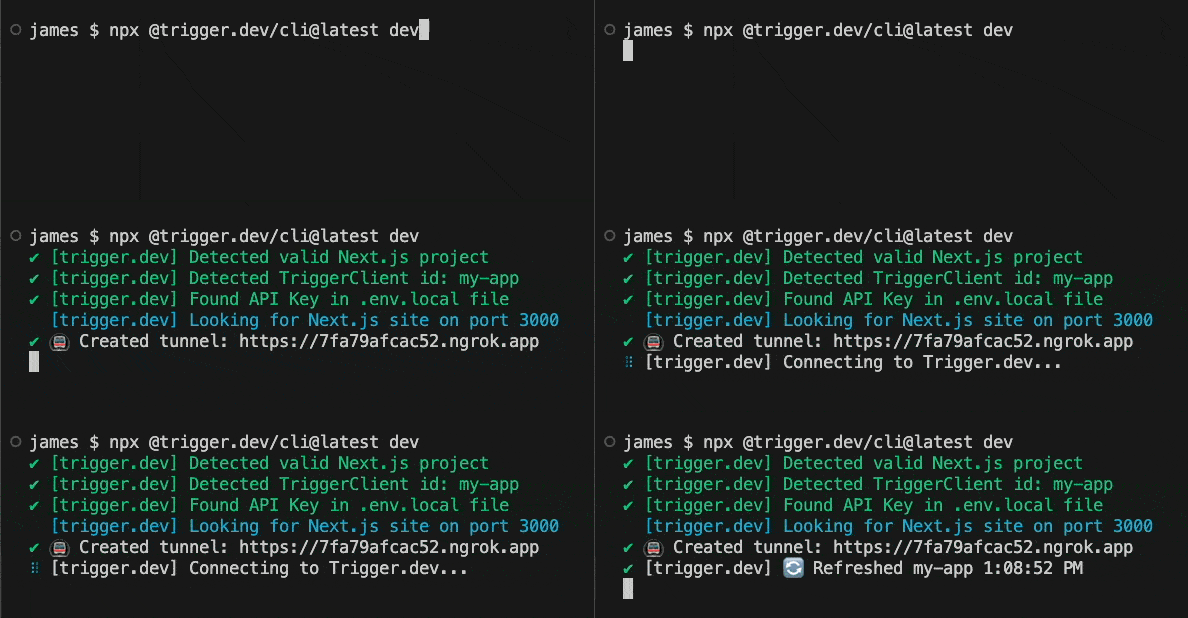
Make sure your site is running locally before continuing. You must also leave this `dev` terminal
command running while you develop.
In a **new terminal window or tab** run:
```bash npm
npx @trigger.dev/cli@latest dev
```
```bash pnpm
pnpm dlx @trigger.dev/cli@latest dev
```
```bash yarn
yarn dlx @trigger.dev/cli@latest dev
```
You can optionally pass the port if you're not running on 3000 by adding
`--port 3001` to the end
You can optionally pass the hostname if you're not running on localhost by adding
`--hostname `. For example, in case your app is running on 0.0.0.0: `--hostname 0.0.0.0`.
## update Command
The `update` command will update all Trigger.dev packages to the latest version.
```bash npm
npx @trigger.dev/cli@latest update
```
```bash pnpm
pnpm dlx @trigger.dev/cli@latest update
```
```bash yarn
yarn dlx @trigger.dev/cli@latest update
```
## whoami Command
The `whoami` command will print out information about your current Trigger.dev project and environment, based on the API key found in your `.env` or `.env.local` file
```bash npm
npx @trigger.dev/cli@latest whoami
```
```bash pnpm
pnpm dlx @trigger.dev/cli@latest whoami
```
```bash yarn
yarn dlx @trigger.dev/cli@latest whoami
```
## send-event Command
The `send-event` command will send an event to your Trigger.dev project. This is useful for testing your Trigger.dev project locally.
```bash npm
npx @trigger.dev/cli@latest send-event -n "event.name" -p "{ \"key\": \"value\" }"
```
```bash pnpm
pnpm dlx @trigger.dev/cli@latest send-event -n "event.name" -p "{ \"key\": \"value\" }"
```
```bash yarn
yarn dlx @trigger.dev/cli@latest send-event -n "event.name" -p "{ \"key\": \"value\" }"
```